What are worktrees?
| Time to read: |
|---|
| 3 minutes |
Definition
In Git, a worktree is an additional checked-out working directory for a given branch.
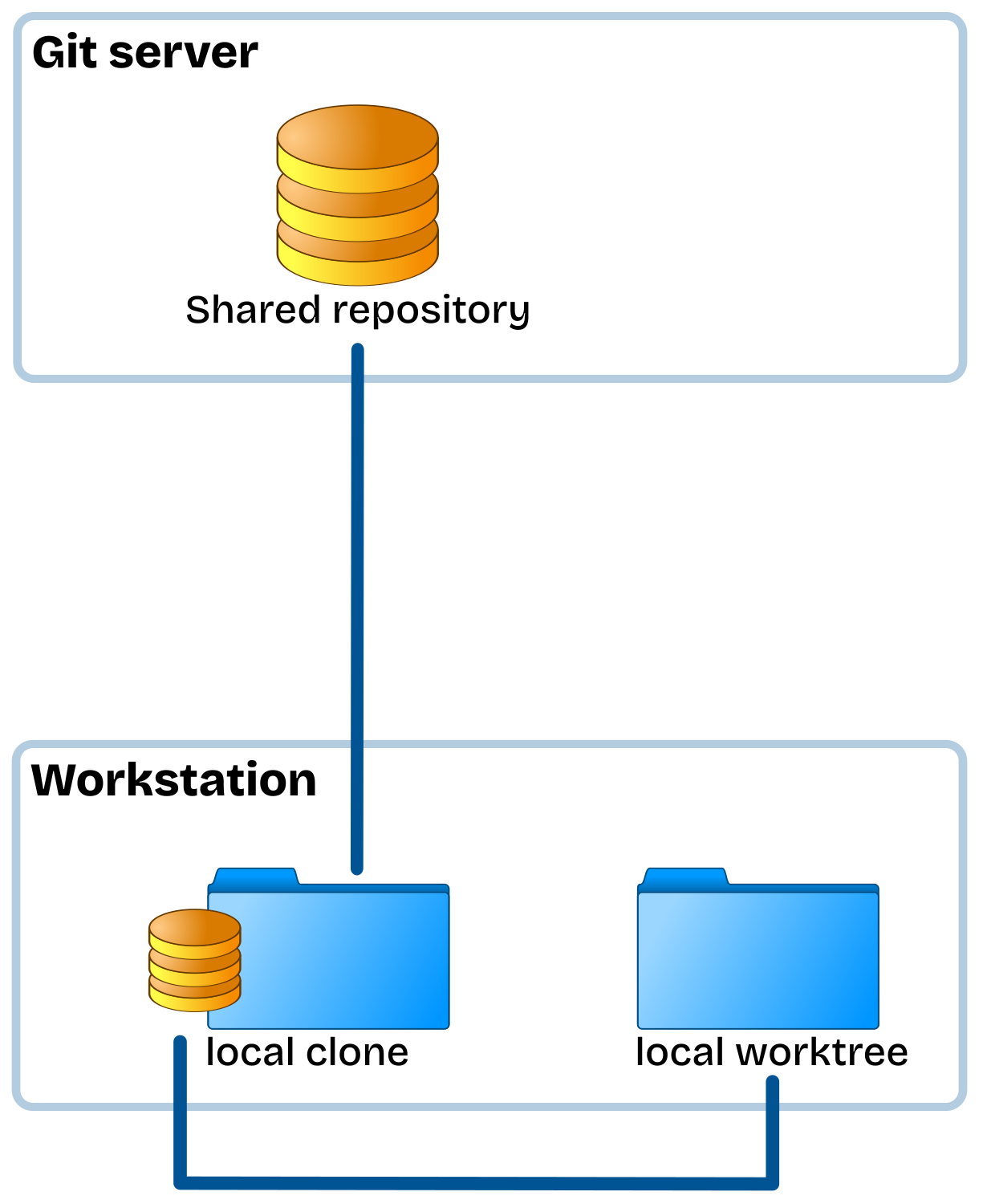
- A local clone is a local copy of a shared repository that embed a local repository;
- A worktree is a local folder sharing the same local repository;
- You can have arbitrary number of worktree for a given clone.
At the first glance, a worktree looks like a simple Git clone, but it is not exactely the same.
- The clone is an independant working space that regroup both repository and work folder.
- Worktree is only a work folder.
Each worktree has their own work folder, index, and HEAD and each of them is attached to a branch.
Worktrees are lighter than a full clone because they reuse the repository’s objects rather than duplicating them.
Advantages
- Concurrent branches: They enable you to work on multiple branches at the same time. You can have one worktree dedicated to bug fixes and another for a feaure development. You eliminate the need to switch or stash.
- Faster context switching: No need to checkout repeatedly or stash changes to move between tasks.
- Build isolation: As each worktree is built in their own directory, you benifit independant environments for code, build and test while working on a branch.
- Simple commands: the worktree command comes with simple actions. add to create a worktree, list to view defined worktrees and remove to delete one.
- Disk space use: A you share a single Git repository, the object database, you are reducing disk usage compared to multiple clone setup.
Inconvenients
- Branch restrictions: This is the main restriction with worktrees. You cannot check out the same branch in two worktrees at the same time.
- Submodule and hook quirks: Support for submodules is documented as incomplete and their use is clearly not recommended. Additionaly, some hook setups, or Git LFS can have weird behaviors.
- IDE setup: when you don't commit your IDE specific configuration within the repository it means you have to replicate this setup on every new worktree.
- Management overhead: Depending on your personal ways of working, or prject specific needs, you might stuggle to constantly add and remove worktrees.
- Mental overhead: In the same way as having multiple clones, splitting the work in multiple working directories can be confusing about where changes live, which HEAD each worktree uses, and which branch to push. Make sure you have clear and consistent workflow.
Activities
Each section propose to run small activities in a sandbox directory.
A Bash script is proposed to prepare those disposable folders. You just need to call the script as specified in each activity from the course clone repository.
Typical usage will be:
./scripts/create-playground.sh {ACTIVITY}Where {ACTIVITY} is the name of a specific activity.
Activity sandbox folder is located from course clone base directory ./playgrounds/.
Calling the script without argument will display the list of possible activities:
./scripts/create-playground.shUsage: ./scripts/create-playground.sh <activity_name>
Available activities:
Interactive rebase:
- rebase-int_start
- rebase-int_drop
- rebase-int_pick
- rebase-int_reword
- rebase-int_drop-merge
- rebase-int_reorder
- rebase-int_exec
- rebase-int_squash
- rebase-int_fixup
- rebase-int_edit
- rebase-int_edit--noconflict
- rebase-int_edit--split
Worktrees:
- wt_add
- wt_list
- wt_remove
- wt_more
Patching:
- patch_create
- patch_apply
Examples:
./scripts/create-playground.sh wt_add
./scripts/create-playground.sh rebase-int_drop