What is interactive rebase?
| Time to read: | Activity duration: |
|---|---|
| 5 minutes | 10 minutes |
Interactive rebase is one the many powerful tool exposed by the git source control management (scm).
Short definition
interactive rebase is a way to rewrite the history of commits in your branch.
Longer definition
When you start an interactive rebase, you go into a mode where you can manipulate each commit in the range you specify.
In this mode you are allowed to move, merge, remove or edit commits.
Some commands are simple, as reordering or merging. Other can be more complex as edition or external command execution.
You guess it, the interactive rebase give access to powerful, but dangerous tools.
This tutorial won't go into all possible actions. I will only focus on the most easy and useful possibilities that are really useful on daily basis.
Mandatory safety information
WARNING
There will be dragons
Git interactive rebase is very powerful, but rewriting history can be dangerous.
Keep in mind that this is quite safe as long as you don't share your altered timeline with someone.
How safe is this?
- Rewriting history of a local branch before pushing on remote:
Quite safe. - Rewriting history on a local branch that was already push on a non-shared remote branch (on your own fork):
Safe, but be careful if the branch can be access by another person. - Rewriting history on a branch that other person accessed and already pulled:
You are looking for trouble, especially if they started to do modification on their side.
Activities
The rebase interactive section propose one small activity for each major command available while an interactive rebase is active.
- Pick Use a commit, a safe default if you want to preserve a commit in the final history. This is the default action on a commit that won't do anything.
- Reorder: change the order of commits in the branch history.
- Drop commits to remove commit in the history log of your branch.
- Reword Indicates that during rebase you want to edit the commit message of a commit. Commit order is not modified, only your commit message will be updated.
- Edit This will pause the interactive rebase to give you a chance to edit a commit content.
- Squash Combine a commit with the previous one, so only one commit appears in final timeline.
- Fixup Combine a commit with the previous one, but drops current commit message.
- Exec Run a command in the middle of rebase process.
First glance
Let's do a first tour of an interactive rebase.
Create the playground
About examples
Each playground is created as a new Git repository;
This imply that values for dates, time and Git hash (SHA1) shown in output examples will differ from your own values.
That's why most of the instruction will refer to commit messages and not too much on SHA1.
- From the repository root, create an activity playgroundbash
./scripts/create-playground.sh rebase-int_start - If no error was encountered, you should be able to go into the new playground folder:bash
cd ./playgrounds/rebase-int_start - Check content of this folderbash
ls -laconsoletotal 8 drwxr-xr-x@ 4 sylvain staff 128 Oct 28 21:59 . drwxr-xr-x@ 7 sylvain staff 224 Oct 28 21:59 .. drwxr-xr-x@ 12 sylvain staff 384 Oct 28 21:59 .git -rw-r--r--@ 1 sylvain staff 1596 Oct 28 21:59 queue-example.ts::: 4. Now verify the Git history
bashgit log --oneline3aec2e0 (HEAD -> main) fix bug 56ddbe6 add debug to enqueue/dequeue 1126d67 implement size 9d0fc43 implement dequeue f289cd8 implement enqueue 70885da add test for queue size a983001 add test for dequeue on empty queue 90089d5 add constructor and inner collection 60292a3 add more tests for `dequeue()` e95f80e class skeleton 21751ce api use example for `dequeue()` adf9b56 api use example for `enqueue()` 66a2e16 create file with draft specifications
Start a rebase
You first need to ensure that VSCode will be used as editor by Git.
In you shell, define the GIT_EDITOR variable to reference code. The --wait option ensure that git will wait until editor closes the file before continuing.
export GIT_EDITOR='code --wait'Rebase is never applied on the entire history of the branch. You need to specify a starting point.
For our first example we'll start on the last 7 commits.
git rebase --interactive HEAD~7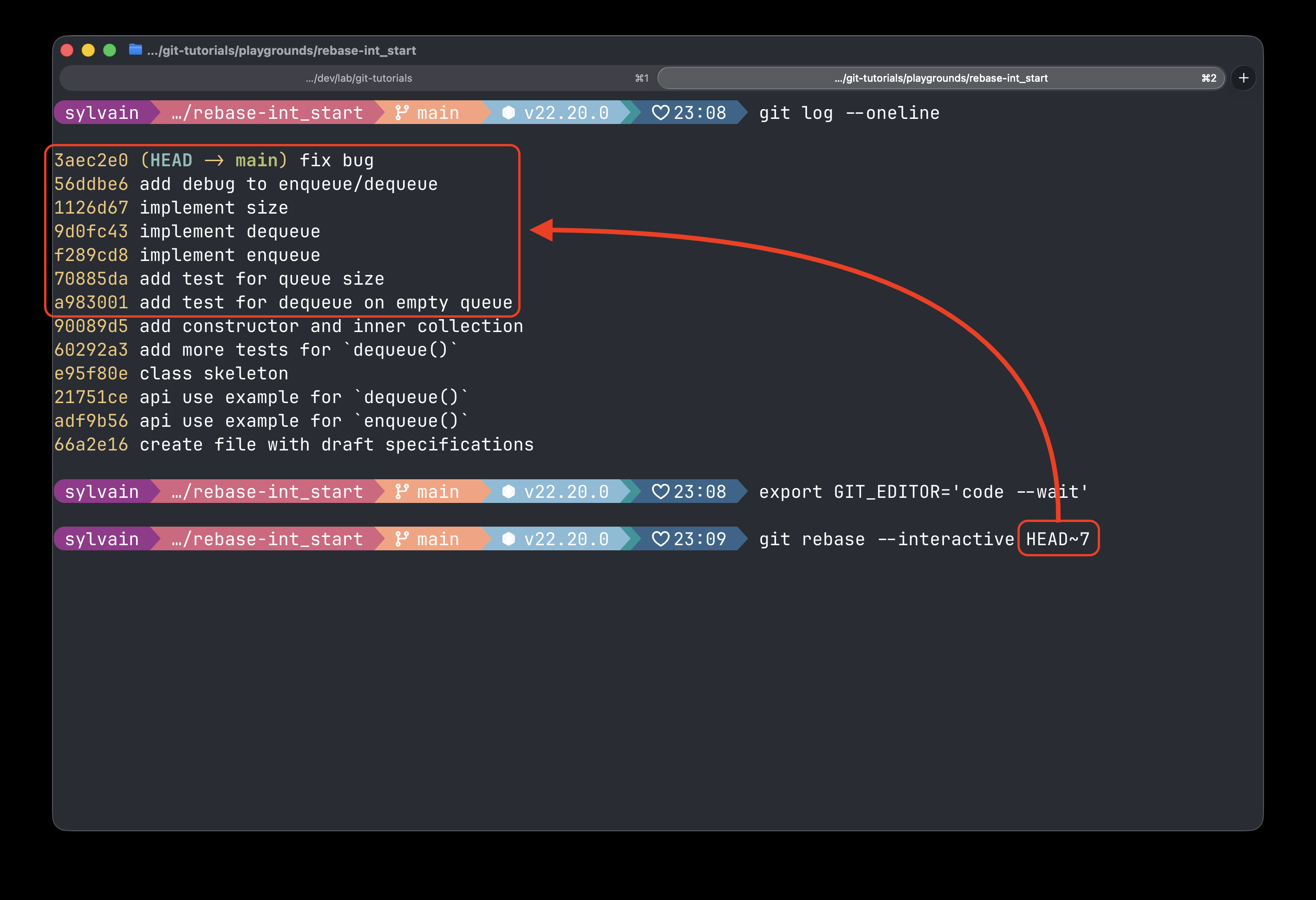
The shell should display a message like:
hint: Waiting for your editor to close the file...And VSCode should open a new temporary file similar to the following screenshot:
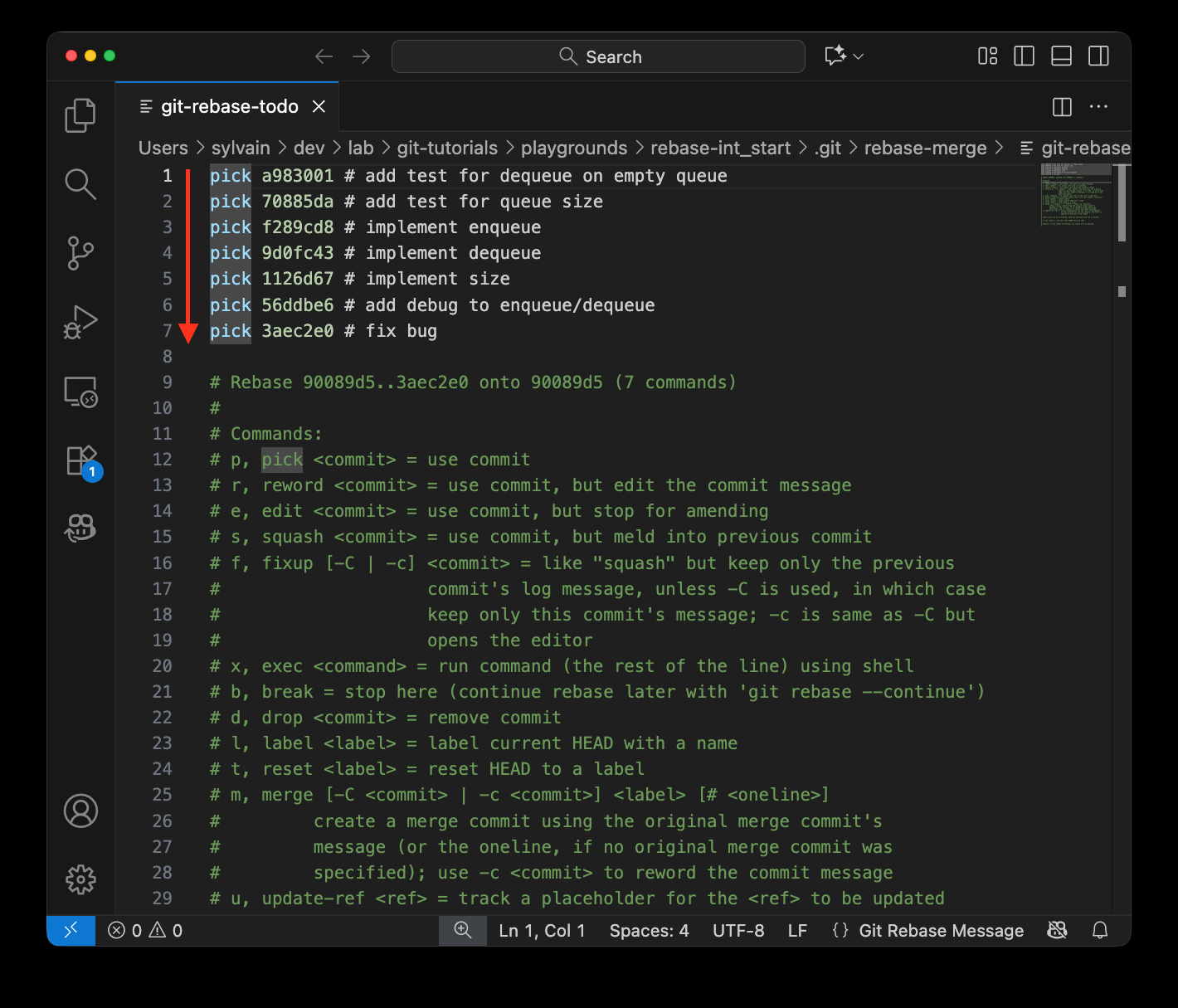
This file content describe the content of a rebase action:
- top of file contains all commits that we included in the rebase
- commits are listed in chronological order, the opposite to the
git logoutput. - lines prefixed with a
#are comments acting as inline help listing supporting actions
We won't go further in this first tour.
Close your editor and the shell will give you back control with a message similar to:
Successfully rebased and updated refs/heads/main.